DOC Overview
SmartSell Quiz helps Shopify merchants show product recommendation quizzes as a popup, side tab, auto slide, or embedded page experience. The app block must be available in the published theme before shoppers can see the quiz.
For most stores, the best setup is simple: create the quiz in SmartSell, enable the app in the Shopify theme editor, choose where the quiz appears, then test the storefront as a shopper.
GO Quick Guides
NEW Create and Publish a Quiz
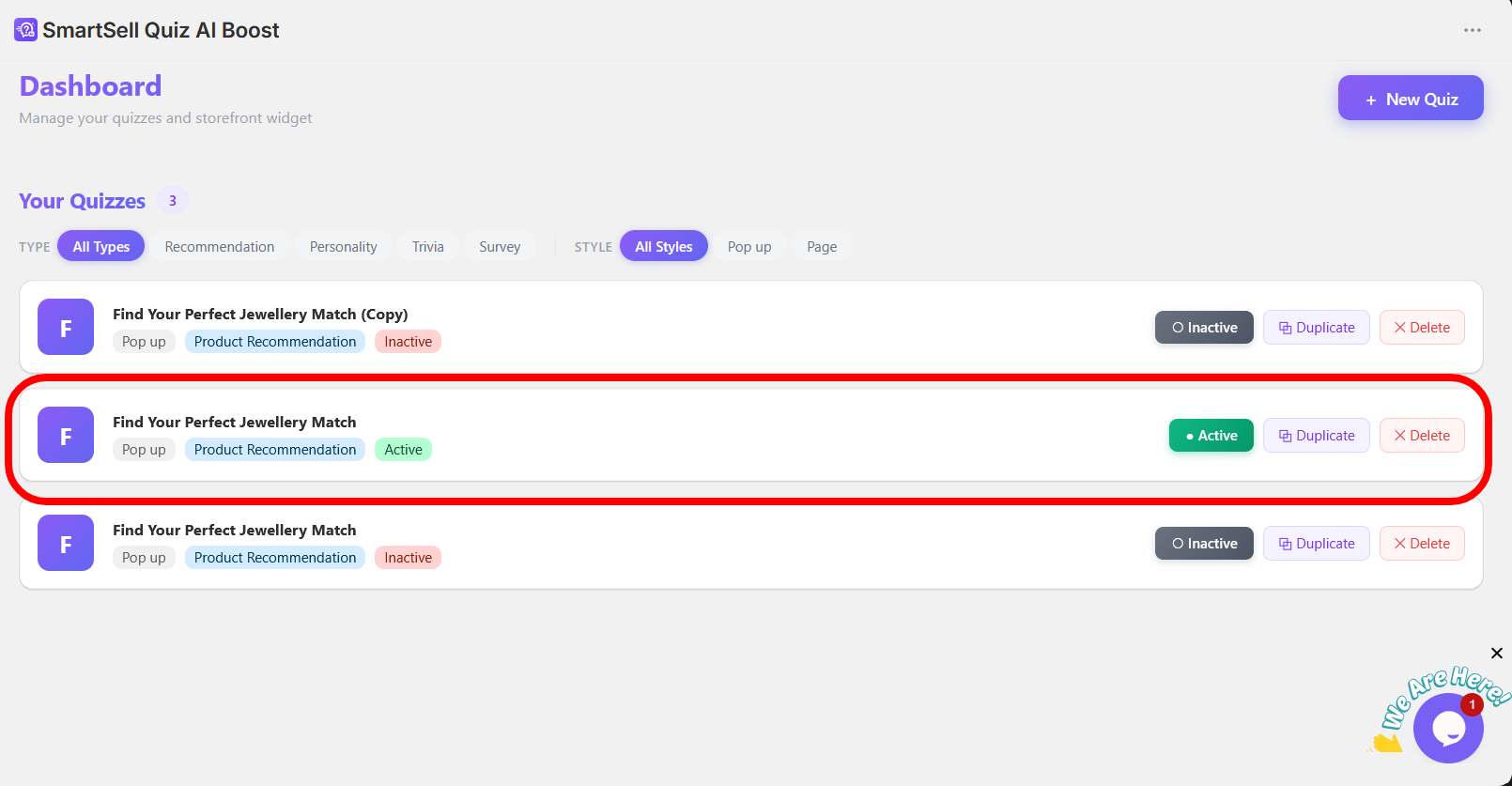
Create or open a quiz
From the SmartSell dashboard, click New Quiz, or open an existing quiz from the list.
Add questions and answers
Open the Questions tab, add your question type, write the answers, and link products or tags where needed.
Save each question
Click Save Question after editing titles, options, images, logic, tags, or linked products.
Preview and activate
Use Preview to test the flow. Set the quiz to Active when it is ready for the storefront.
PG How to Add Quiz to a Page
Use this when the quiz should live inside a dedicated Shopify page, for example /pages/gift-finder. Page mode uses the SmartSell page embed snippet from the app.
Create the Shopify page
In Shopify admin, go to Online Store > Pages, click Add page, add a clear title such as Gift Finder, keep it visible, and save.
Add the page embed snippet
In the Shopify page or theme editor, add a Custom Liquid block or section and paste the page embed code from SmartSell. It looks like <div class="QZpage" id="page-quiz" id-quiz-data="QUIZ_ID"></div>.
Load the SmartSell storefront app
In the theme editor, make sure the SmartSell Quiz AI Boost app block or app embed is enabled on the same template so the quiz script and styles load.
Set visibility and save
In SmartSell, choose Display Mode > Page. In Page Visibility, choose Specific pages only and add the page path, for example /pages/gift-finder.
BLK How to Add Quiz to a Block
Use the Shopify theme editor when you want the quiz inside a section on a page, product template, or another compatible Online Store 2.0 template.
Open the theme editor
In Shopify admin, go to Online Store > Themes, find the published theme, and click Customize.
Select the template
Use the top template dropdown to choose the home page, a page template, product template, or another supported template.
Add a Custom Liquid block
Click Add block in the section where the quiz should appear and choose Custom Liquid. Paste the SmartSell page embed snippet for the quiz.
Load SmartSell and save
Add or enable the SmartSell Quiz AI Boost app block or app embed on the template so assets load. Drag the quiz block to the right position, save, then preview the page.
POP How to Add the Same Quiz in Page and Popup
You can use one quiz as a page experience and still let shoppers open that same quiz as a popup from the storefront launcher.
Keep one quiz active
Open the quiz in SmartSell and set it to Active. This is the quiz the storefront should load.
Add it to the page
Use Display Mode > Page and add the SmartSell page embed snippet to the dedicated quiz page.
Enable popup access
Use Display Mode options such as Floating Button, Side Tab, or Auto Slide for popup-style access on the pages where you want the launcher.
Control where each appears
Use Page Visibility to include the quiz page and any popup pages. Exclude pages where the popup should not show.
?rq_open=QUIZ_ID after the store domain.AB How to Do an A/B Test
A/B Testing compares two different quizzes and reports views, opens, completions, and add-to-cart conversions.
Create two quiz variants
Prepare Variant A and Variant B as separate quizzes. They can test different questions, offers, layouts, copy, or recommendation logic.
Open A/B Testing
In the SmartSell app, open A/B Testing and click New Test. This feature requires a paid plan.
Select the variants
Name the test, select Variant A and Variant B, then set the traffic split, such as 50% to A and 50% to B.
Read the results
Let the test collect enough completions. Compare conversion rate and add-to-cart rate before ending the test and keeping the winner.
IMG How to Add Image to Trigger Button
The trigger button is the storefront button or tab shoppers click to open the popup quiz.
Open Trigger Button settings
Open the quiz in SmartSell, go to the design or style settings, then find Trigger Button.
Enable image mode
Turn on the custom button image option. Custom trigger button images are available on paid plans.
Upload the image
Use the upload area to add an image file. Keep it lightweight; the app compresses button images and rejects files that are too large.
Save and preview
Save the quiz style, then preview your storefront to confirm the image button appears in the right position.
OPT Add Images to Answer Options
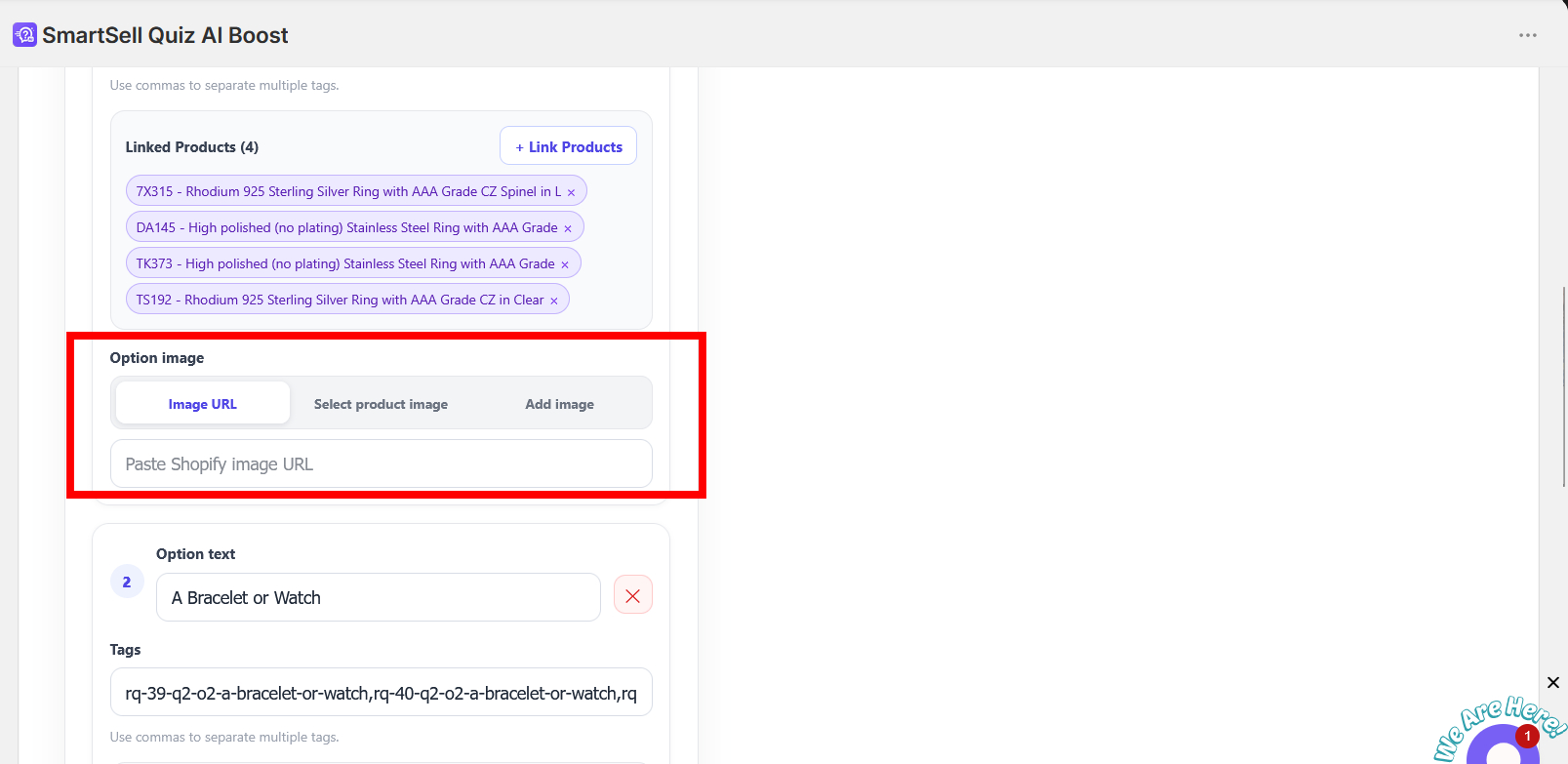
Images are added inside each answer option. For example, options like Ring, Bracelet, or Necklace can each have their own image.
Open the question
Go to the Questions tab and click the question row you want to edit.
Find Option image
Inside an answer option, choose Image URL, Select product image, or Add image.
Save the question
Click Save Question after adding or changing the image.
SET Display Settings
Page Visibility
Choose where the quiz appears. Use All pages for broad popup visibility, or Specific pages only for a dedicated quiz page.
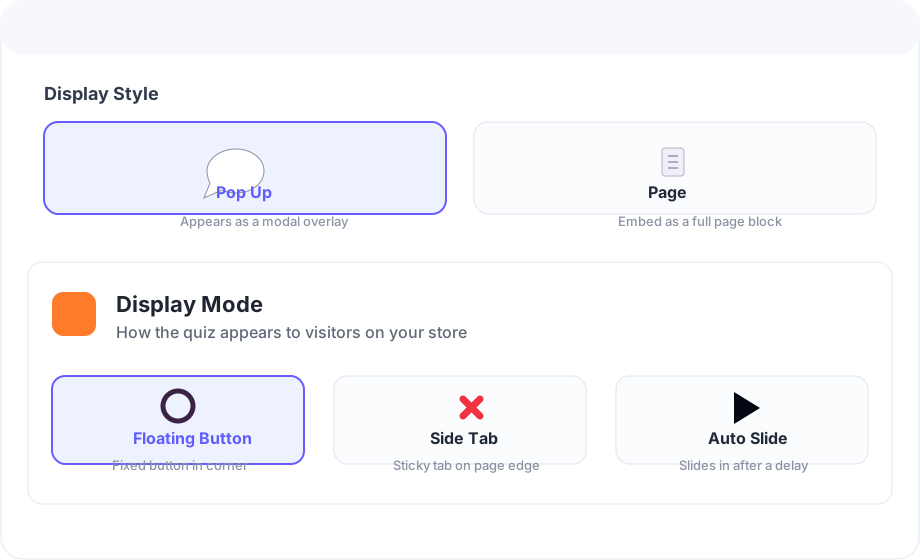
Display Mode
- Floating Button: fixed button that opens the quiz popup.
- Side Tab: sticky side tab that opens the quiz popup.
- Auto Slide: opens automatically after a delay.
- Page: embeds the quiz inside a Shopify page or app block area.
Popup Behavior
Control auto-open timing and how long the popup stays hidden after a shopper closes it. Popup behavior does not apply to embedded page mode.
CRM Integrations
SmartSell Quiz can send quiz respondents who provide an email address to Klaviyo, Mailchimp, and Shopify Customers. Add an Email Address question to the quiz first so the storefront can capture the subscriber email.
Connect Mailchimp
Open Integrations > Mailchimp, enter your Mailchimp API key and Audience ID, save, then use Test Connection. New quiz emails are added to that audience.
Connect Klaviyo
Open Integrations > Klaviyo, add your Private API Key and List ID, save, and test the connection. Quiz emails are subscribed to the selected Klaviyo list.
Connect Shopify Customers
Open Integrations > Shopify Customers and connect customer access. If Shopify asks for additional permission, approve it and return to finish connecting.
Test with a real quiz
Preview the quiz, complete the Email Address question, and submit the quiz. Check your Mailchimp audience, Klaviyo list, or Shopify Customers area after a short delay.
FAQ FAQ
Why is my quiz not showing on the storefront?
Check that the quiz is Active, the SmartSell app block or app embed is enabled in the published theme, and Page Visibility includes the current URL.
Why is image upload locked?
Option images and custom trigger button images are paid-plan features. Upgrade first, then return to the editor.
Can I add the quiz directly to the menu?
No. A menu links to a page or URL. Add the quiz to a Shopify page first, then add that page to the menu.
Can I use more than one quiz?
Yes. Use Page Visibility to target different quizzes to different pages. For popup tests, keep the intended quiz active and test the storefront carefully.
SRC Official Shopify References
These setup steps are aligned with Shopify's current help documentation for pages, menus, app blocks, app embeds, sections, and blocks.
SUP Support
If the quiz still does not appear after following the guide, send the store URL, quiz name, target page URL, and a screenshot of your Display Mode and Page Visibility settings.
Need help with setup?
Contact support from inside the Shopify app or send an email.